[CS111 Home Page]
[Syllabus]
[Students]
[Lecture Notes]
[Assignments]
[Programs]
[Documentation]
[Software Installation]
[FAQ]
[CS Dept.]
[CWIS]
This is a printable version of ps5, using images instead of applets
About this Problem Set
There are 3 pieces to this problem set: the prelaboratory
assignment, the laboratory assignment and the homework assignment.
You are required to do all three parts. We recommend that you do the
prelaboratory assignment before your lab section, the
laboratory assignment during your lab section and the homework
assignment after completing the prelab and lab assignments.
How to turn in this Problem Set
Prelab Assignment: You do not need to turn in anything for
the prelab assignment.
Laboratory Assignment: Save the modified GUICalc.java file
in the GUICalculator folder. Upload the entire folder to your ps5
drop folder. Turn in a hardcopy of the GUICalc.java file.
Homework Assignment: Save the modified GUIPictureWorld.java
file in the GUIPicture folder. Upload the entire folder to your ps5
drop folder. Turn in a hard copy of the GUIPictureWorld.java.
Turn in only one package of hardcopy materials. Staple your files
together with the cover page, and submit
your hardcopy package by placing it in the box outside of Jennifer's
office (E104, directly across from E101).
Reminders
- Be sure to doublecheck that the your folder and files were
actually uploaded.
- Keep a personal back-up of every file that you upload.
Prelaboratory Assignment
Creating a simple GUI panel
In the lab assignment, we will be setting up the layout of a
simple calculator. One of the pieces of the calculator takes some
time to type in, so it will make your life easier if you create it
ahead of time. In this assignment, you will create the number buttons
for the calculator. This group of buttons looks as follows:
To create this set of buttons, do the following:
- Download the ps5_programs folder from the CS111 download
folder.
- Open the GUICalculator folder. Open the GUICalc.proj file.
- Open the GUICalc.java file. This is currently setup to display
the panel returned by the method makeNumberPanel().
- Modify the makeNumberPanel method to create the 4 x 3 grid of
buttons.
- First, create a new Panel named numberPanel.
- Use the setLayout method to create a 4 x 3 grid layout for
numberPanel. Recall the syntax for this is:
numberPanel.setLayout(new GridLayout(4,3));
- Add the buttons one at a time, using numberPanel.add(new
Button("1"));
- Return the numberPanel.
Laboratory Assignment
Designing a Calculator GUI
You have seen some basic Graphical User Interface Design in
Lecture. Today in lab you will practice creating the components of
the user interface and arranging them in panels. We will create the
following calculator:
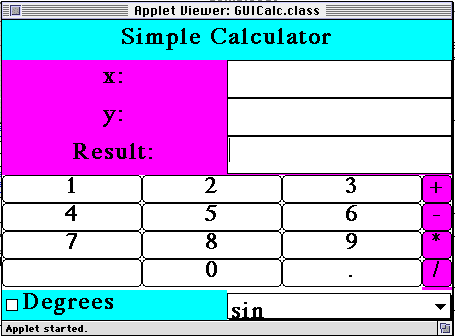
Getting Started
Download the ps5_programs folder from the CS111 download folder.
Open the "GUICalculator" folder. Open the GUICalc.proj file. Look at
the GUICalc.java file. Fill in the method stubs provided to create
the above calculator layout. We will work on this together in lab.
The buttons do not actually have to do anything for this assignment.
When you are finished modifying the GUICalc.java file. Save it in
the GUICalculator folder. Upload the entire folder to your ps5 drop
folder. Turn in a hardcopy of the GUICalc.java file.
Homework Assignment: A User Interface for PictureWorld
In lecture we have been exploring how to build up complexity by
combining primitives and abstracting the results. Using the
PictureWorld methods, we have been able to create beautiful and
complex quilts and knit patterns. With the current implementation of
PictureWorld, in order to test out a given method, we must alter the
java code, recompile and then reload the applet. As a teaching tool,
it would be nice to have a user interface that one could use to
demonstrate how PictureWorld works. That is, we would like to be able
to click on a button and see a picture turn 90 deg when we apply the
"clockwise90" method to it. Your task in this homework assignment is
to create the layout for such a user interface.
The PictureWorld GUI Layout
We have designed the following user interface for use with
PictureWorld (Note for this assignment the buttons don't actually do
anything):

The interface is intended to work as follows:
- The choice boxes above the p1 and p2 Picture Frames allow the
user to choose one of several Picture primitives, such as a blue
patch or a green wedge.
- The Choice area named "Operation" allows the user to choose a
PictureWorld method to perform on Picture p1 or on Pictures p1 and
p2 (for methods that require two parameters). The "Execute" button
causes the selected operation to be carried out on p1 and/or p2.
The result of this operation appears in the "Result" Picture
frame.
- The user can name the newly created picture in the "Result"
frame by typing in the TextField above the Result Picture Frame.
The user can then add this new Picture to the menus for p1 and p2
by clicking on the "Add to Menu" button.
- The "Line" and "Rect" buttons allow you do create new
primitive pictures. For "Line" you can specify the x and y
coordinates for the beginning and end of the line and the color of
the line. For "Rect" you can specify the x and y position and the
width and height of the rectangle, as well as the color.
Fortunately, you do not have to create a working
version of this user interface in this assignment! You merely have to
reproduce the layout shown in the applet above.
To help you recreate the layout, take note of the following:
- The entire applet is organized as a BorderLayout.
- The Blue panel with the title is located in the "North" region
of the applet.
- The p1 and p2 picture frames are contained together within a
panel that is placed in the "West" region of the applet.
- The "Operation" panel and the "Result" frame are contained in
a panel that is in the "Center" region of the applet.
- The Line and Rect Panels are contained in a panel that is
placed in the "South" region of the applet.
- This applet makes good use of the GridLayout.
Creating your PictureWorld Layout
Open the Pictures.proj file from the GUIPicture folder in the
ps5_programs download folder. Open the GUIPictures.java file. This
files contains some method stubs for creating your User interface.
- The init() method inside the GUIPictureWorld class should be
used to create most of the layout.
- The PicturePanel class creates a panel with a picture window
and a panel directly above it. We have provided you with the
constructor method for this class. However, you should fill in the
two method stubs provided. The first places a Label and a Choice
box (containing the Picture primitive choices) in the top panel of
the PicturePanel (this method is used for the p1 and p2
PicturePanels. The second places a Label, a TextField and a Button
in the top panel of the PicturePanel. This method is used for the
Result PicturePanel.
- The PrimitivePanel class creates panels that look like the
Rect or Line panels for creating new primitive pictures. It has
only a constructor method and some instance variables that you
should fill in.
- You should define instance variables corresponding to each
TextField, Checkbox, and Choice component that you create (you do
not need to make instance variables for Buttons, Labels or
Panels). While these variables aren't used now, they will be
crucial for implementing this user interface in the future.
Handing in the Homework Problem
When you are finished writing the code for the GUI layout in
GUIPictureWorld.java, save the modified file in the GUIPictures
folder. Leave all the other .html, .java, .proj and .class files in
this folder. Upload the entire folder to your ps5 drop folder on the
CS111 server. Turn in a hardcopy of the GUIPictureWorld.java file.