 |
Lab 1
|
|
|
Lab 1
|
Sentence from the folder
lab1_programs using the CS111 download account,
cs111d to access the cs server. You'll need the password
given in lab. Directions for using Fetch in CS111 are available here. For documentation using WinSockFTP on a PC, click here.
html file, and thus can be placed on a web page, and
html file.
 )
) .java. DrJava can take our Java programs and compile them. Compiling a Java program converts Java code into something called bytecodes which can then be understood by the computer. Bytecodes are stored in files that end in .class. Don't worry, you'll see examples of all this in a few minutes.
This icon should be on your desktop or in the dock. If you don't see the DrJava icon, go to the "Go" menu at the top of the screen and select "Applications". A window should open with the DrJava icon, and you can now start DrJava by double-clicking on the icon.
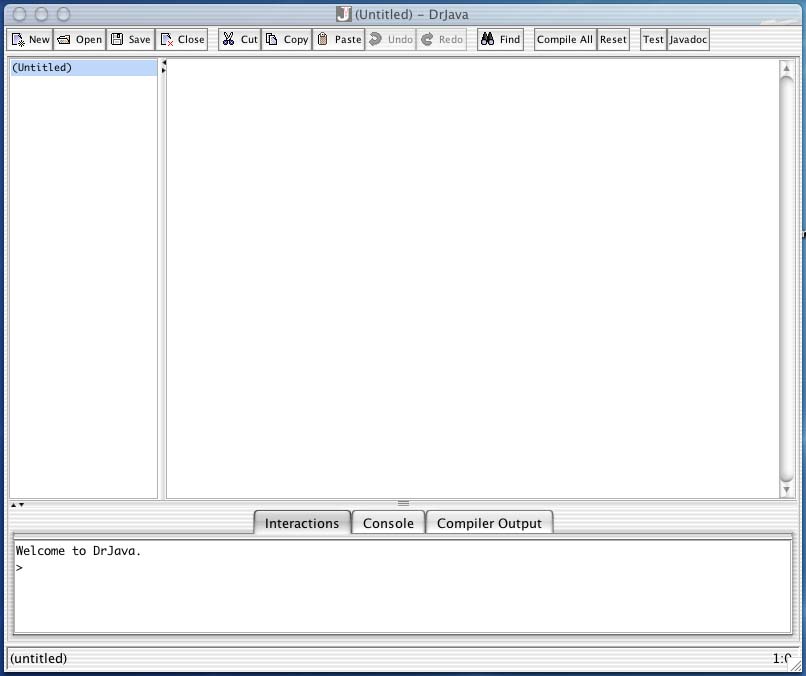
You can resize the window by pulling on down its lower right corner. The pane at the bottom of the window is called the interactions pane (it should have a message saying "Welcome to DrJava.") The pane on the left of the window is called the Documents pane. When you are editing Java files, the name of the file (or document) will appear in this pane. Finally, the pane on the right is called the Definitions pane or Editing pane. This is where contents of files will appear (i.e., the Java code in a file).
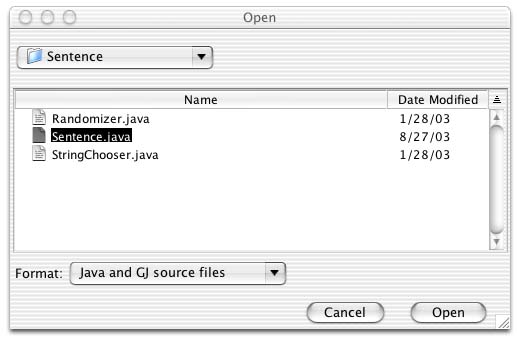
Important Note: Always start DrJava to get into Java
programming. If you try to open the Sentence.java file
by double-clicking on it from within the Sentence folder on your Desktop,
you will end up in a TextEdit program, rather than in DrJava.
Now find the folder Sentence which you downloaded earlier with Fetch, and open the file Sentence.java.
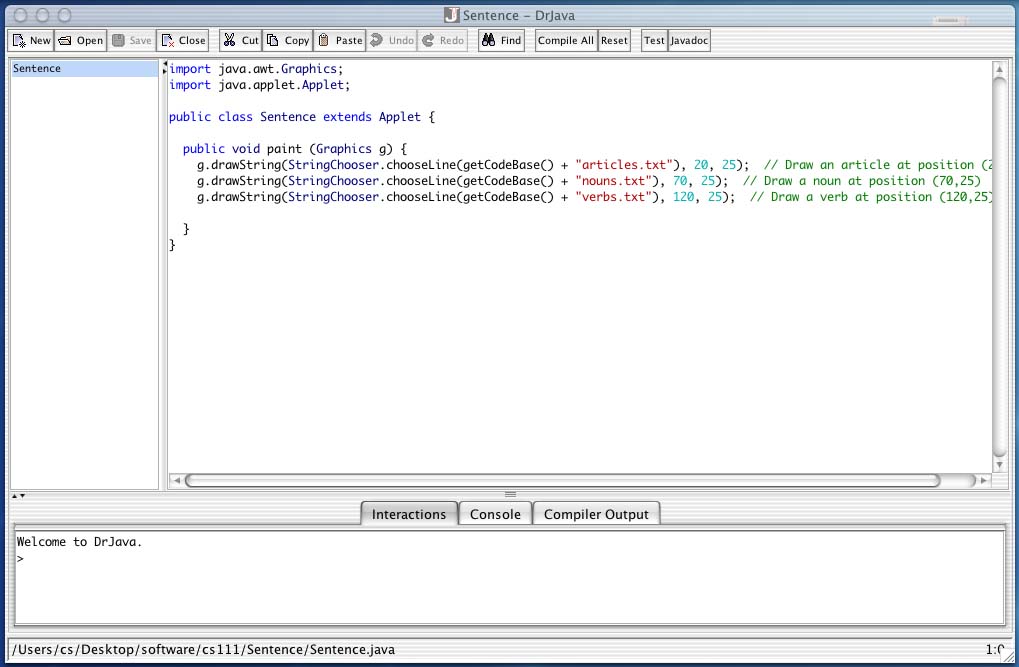
The Editing pane should now contain a few lines of Java code.
class files.
To compile the program with DrJava, hold down the shift on
your keyboard and press the key F5. (Alternatively, you can select Compile Current Document from the Tools menu). When the program is
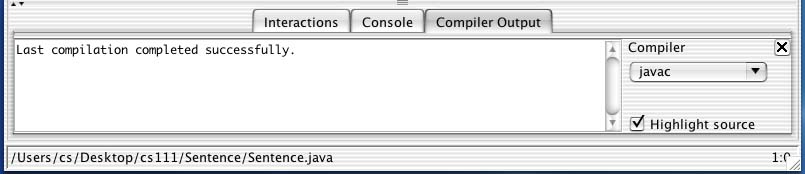
finished compiling, you should see a message in the bottom pane saying
"Last compilation completed successfully."
If you look in the folder
Sentence that you downloaded earlier, you should now see
some new files in the folder: class files. These are the
results of the compilation you just performed.
class files. This
particular Java program is an Applet (remember we said earlier that
there were 2 types of programs: applets and applications?) Our Java
applet is invoked from an HTML file called
Sentence.html which we will open from an internet
browser. Go ahead and open your favorite browser (Netscape Navigator,
Microsoft Explorer, Apple Safari, etc.)
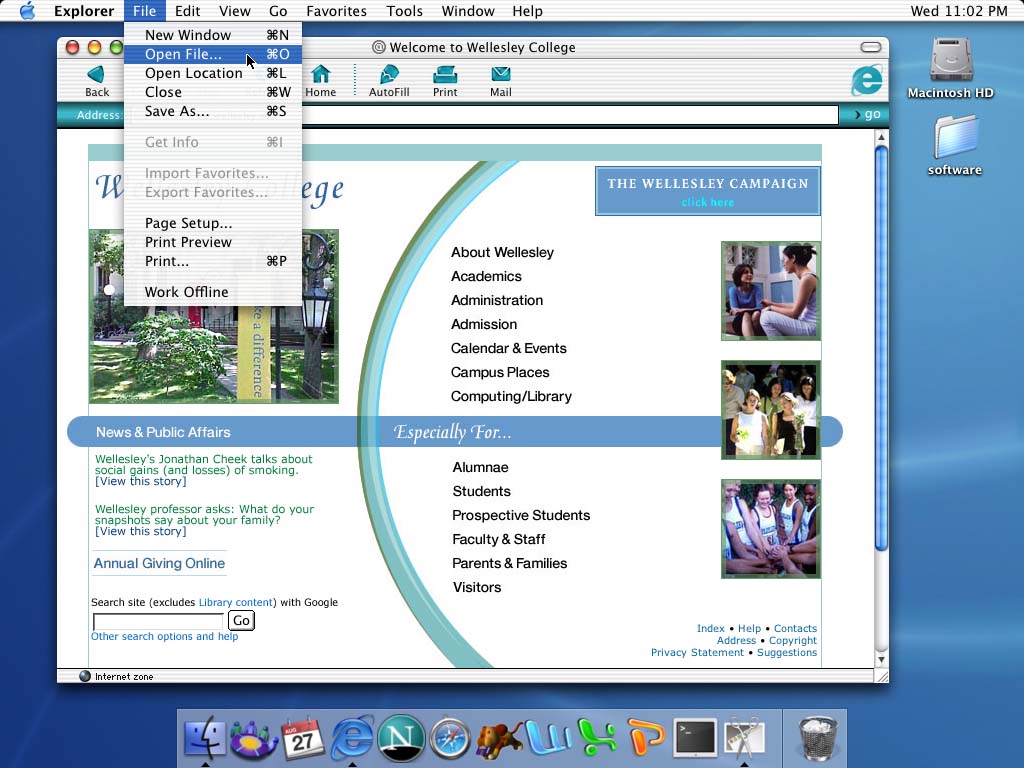
Now select the
File menu at the top of the screen and choose the option
Open file... Finally, select the file to open
Sentence.html. If everything works, 3 words should
appear in your browser: an article, a noun, and a verb.
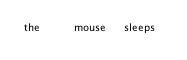
The 3 words in your browser window may be different from those shown above. Don't worry, that's a good thing. Try pressing the Refresh or Reload button on your browser. What happens? Do the words change?
HTML file a number of times, you may guess what the program does. Let's now try changing the code of the Java applet. Return to the DrJava window which contains the code for Sentence.java. Rather than drawing the "verb" at position (120,25), what happens if we change the code to draw the verb at position (20,25)? Go ahead and change this in the Editing pane of DrJava. Now save the file and re-compile it (either by pressing the "Compile All" button or by selecting the "Tools" menu and choosing "Compile Current Document". If you compilation is successful, you can return to your internet browser and run the applet again (just click on the Refresh or Reload button. If your compilation is not successful, DrJava should indicate in yellow where an error occurred. You will probably cause a million errors throughout this course. Don't worry and don't get discouraged. Everyone does, even the most advanced programmers. That makes it all the sweeter when your programs run smoothly. Once you fix any errors, you should try recompiling the program and running the applet in your browser.
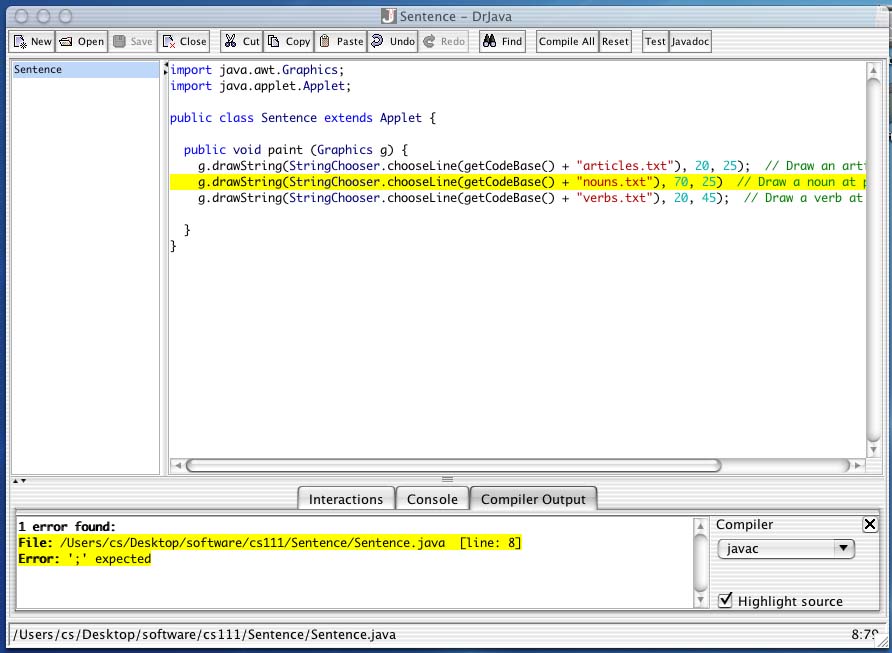
Go ahead and fix the error (add the necessary semicolon) and recompile the program and re-run the applet in your browser. A note about errors: Java error messages sometimes may not point to the exact spot where the error has occurred. If it's not clear what the error is, carefully check all your code. Understanding error messages is one of the most difficult skills that you will acquire during this course.
Don't forget to save your files on a zip disk or upload them to your private folder (see instructions for Fetch).
Please delete your folder on the machine that you were using: drag it to the trash and empty the trash. It is your responsibility not to leave your work behind for other students to see.
Sentence from the folder lab1_programs in the CS111 download directory, /cs111/download on the cs server, if you haven't done so already. You will be modifying the file Sentence.java and the data files (those with extension .txt). You don't need to open any other Java files in the project.
 Exercise 1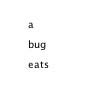
Exercise 2 Exercise 3: adding adjectives
a blue bug eats
 Exercise 4: the "eight ball" program
Will I be rich?
I wouldn't bet on it.
In the end of the lab, please remember to quit DrJava and your browser, save your files to a zip disk (or to your private folder), and delete the folder Sentence.